How to set up and test a SOCKS5 proxy
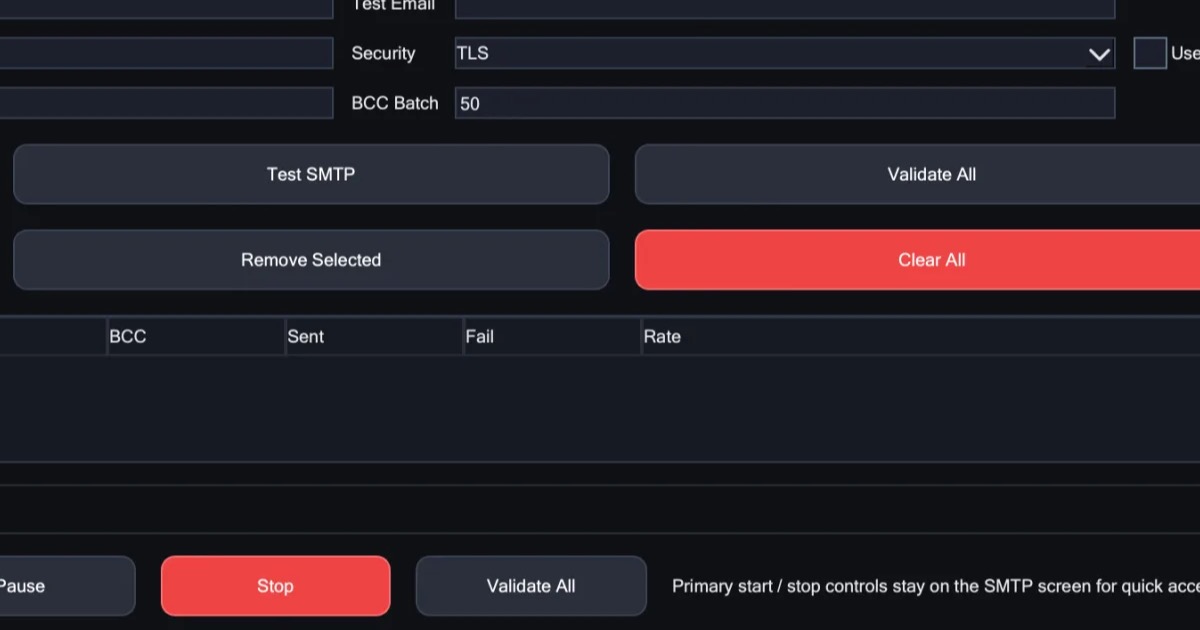
To set up a SOCKS5 proxy, you need four details from your proxy provider: a host, a port, a username and a password. You enter them in your app's proxy settings, choose SOCKS5 as the type, and then test that the proxy works before you rely on it. The whole job takes about ten minutes.
This guide walks through each step: what the details mean, the two ways to sign in, how to test the connection on Windows, and how to fix the usual problems. If you want to know why a proxy matters for sending mail, start with what an SMTP proxy is.
What SOCKS5 is
SOCKS5 is a type of proxy that carries any kind of connection: web pages, mail, file transfers, remote desktop, games, anything that runs over the internet. It does not read or change what passes through it. It simply connects you to the address and port you asked for, from its own address instead of yours.
The other common type is an HTTP or HTTPS proxy. Those were built for web pages, and carry other connections by opening a tunnel, which some networks restrict. When your tool supports SOCKS5, it is usually the simpler choice for anything that is not a web browser.
Step 1: collect the details
Your proxy dashboard gives you an endpoint. It usually looks like one of these:
HOST:PORT
socks5://USER:PASS@HOST:PORT
- Host. The proxy server's name or address.
- Port. The port the proxy listens on. This is the proxy's own port, not the port of the service you want to reach.
- Username and password. Your proxy sign-in, not your email or any other account.
Some providers add settings to the username, such as the country or a session code. Copy it exactly as shown.
Step 2: choose how to sign in
Most providers offer two ways to prove the connection is yours:
- Username and password. Works from any network. Enter them in your app with the host and port.
- Your own internet address. You add your address in the provider's dashboard, and the proxy lets you in without a password. This is useful for apps that have no box for a SOCKS5 username and password, which includes some browsers. It stops working if your own address changes, as home addresses sometimes do.
If you are not sure, use a username and password.
Step 3: test it before you use it
Test the proxy on its own before you put it in your real tools. Then, if something fails later, you know the proxy itself works.
Windows 10 and 11 include curl. Open PowerShell and type curl.exe, not just curl, because plain curl runs a different command there. Replace USER, PASS, HOST and PORT in each command with your details.
Does it connect, and which address do I get?
curl.exe -x socks5h://USER:PASS@HOST:PORT https://api.ipify.org
This prints the address the world sees through the proxy. Run it without the -x part to compare with your own. If the two differ, the proxy is working.
The h in socks5h means the proxy looks up website names for you, instead of your computer doing it. That keeps the lookup in the same place as the connection, and it is the safer default.
Where does the address appear?
curl.exe -x socks5h://USER:PASS@HOST:PORT https://ipinfo.io/json
This shows the country, region and internet provider behind the address. Check that the country matches what you chose. Residential proxies by country explains how to read the result.
Are the ports you need open?
If your tool connects to something other than websites, test that port too. For mail, connect to a real mail server on port 587:
curl.exe -v -x socks5h://USER:PASS@HOST:PORT smtp://smtp.gmail.com:587
A line starting with 220 is the mail server's greeting, which means the port is open through the proxy. To test other ports, the guide to unrestricted proxies shows a quick check that works on any port.
Step 4: add it to your tools
In X Mailer
Open the SMTP & Proxy tab and enter the proxy's details there, once. X Mailer then sends through your mail accounts over the proxy. How X Mailer works has the full tour.
In other apps
Most tools that support proxies have the same four boxes. Look for a section called Proxy, Network or Connection settings:
- Set the type to SOCKS5, sometimes written "SOCKS v5".
- Enter the host and port.
- Enter the username and password, or set up sign-in by your own address if the app has no boxes for them.
- If there is an option to send name lookups through the proxy, sometimes called "Proxy DNS", turn it on.
Windows' own proxy setting
The proxy setting in Windows Settings is for HTTP proxies, and it has no place for a SOCKS5 password. Set the proxy inside each app instead.
Fixing common problems
- The test times out. Check the host and port first. Then run the test without the proxy: if that fails too, your own network or firewall is the problem.
- "Authentication failed" or a refused sign-in. Copy the username and password again, exactly, including any settings in the username. If you use sign-in by address, check your current address with the first test above, without the
-xpart, and update it in the dashboard. - Websites load, but your app does not connect. The proxy may be closing the port your app uses. Test that port, as shown above.
- The location is wrong. Check the location setting in the dashboard, and remember that a neighbouring town is normal.
- The address changes when you do not expect it. That is rotation. Sticky or per-send rotation explains how often each mode changes it.
The X Proxy
The X Proxy is a rotating residential proxy that works with any tool:
- SOCKS5 or HTTPS, with one endpoint.
- Sign-in by username and password, or by your own internet address.
- Every port is open on every plan, including the mail ports 25, 465 and 587.
- Real residential addresses, sourced with consent, across 195+ countries. You choose the country and region.
- One address for 10 minutes at a time, or a new one on every request. You choose when you buy.
In short
- A SOCKS5 proxy needs four details: host, port, username and password.
- Sign in with a username and password, or by your own internet address for apps with no password box.
- Test with
curl.exeandsocks5h://before you rely on it: check the address, the location and the ports you need. - If websites work but your app does not, the proxy is probably closing your app's port.