SMTP rotation: share a campaign across accounts
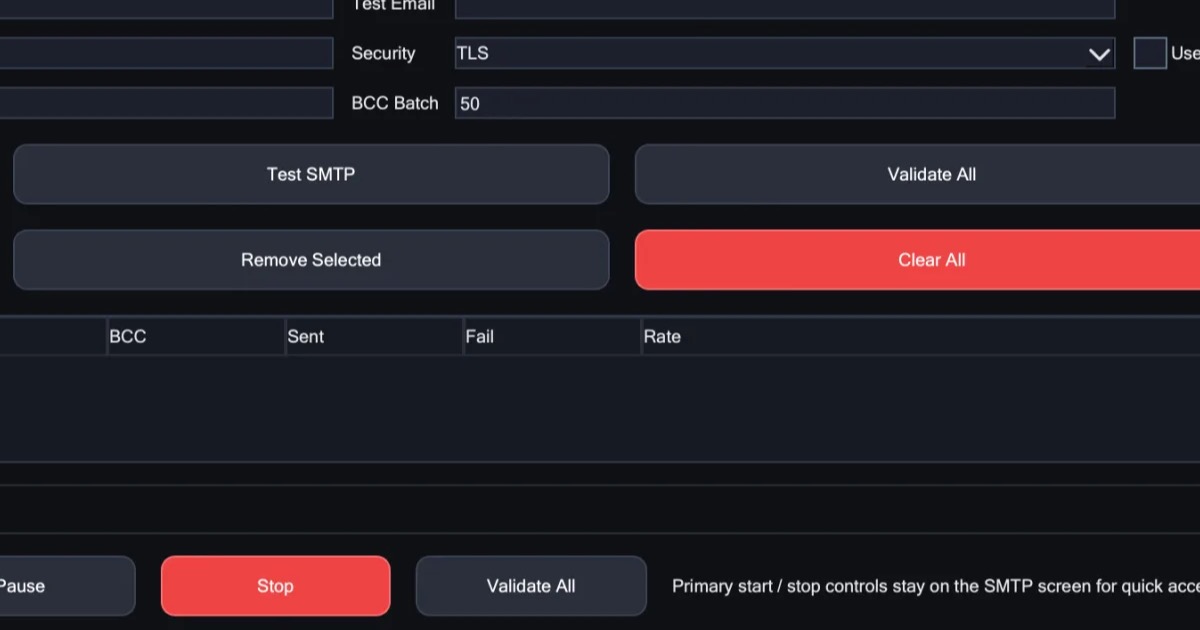
SMTP rotation means sending one campaign through several email accounts that take turns: each account sends a set number of messages, then the next one takes over. It lets you give each account a share of the list that stays within its provider's limits, so no single account carries the whole list.
X Mailer, our bulk email software for Windows, sends this way. This guide covers what rotation is, why it helps, the settings that matter, and how rotating accounts differs from rotating your internet address.
What SMTP rotation is
In a mail app, each email account you send from is set up as an SMTP account: its provider's mail server, a port, and the account's sign-in. SMTP is the protocol that sends email, which is where the name comes from. To rotate SMTP accounts is to send from several of them in turn.
Say you add three accounts and set each one to send 20 messages before the next takes over. The first account sends messages 1 to 20, the second sends 21 to 40, and the third sends 41 to 60. Then the first account takes over again at 61, and the turns go round until the list is done. When every account has the same number, they share the list evenly, so with three accounts each one sends about a third of it.
Why send from multiple accounts
- Each account can stay within its limits. Every provider limits how much one account can send, usually per day. Rotation lets you give each account a share below its limit, instead of pushing one account past it.
- No single account carries the whole list. The work is spread across all your accounts, so none of them does all the sending.
To keep each share within its limit, look up each provider's sending limits, then work out what each account will send. With equal shares, that is the size of the list divided by the number of accounts. If the result is over an account's limit, send part of the list today and the rest on another day.
Limits are not the only rule. Each provider's terms also say what kind of mail it allows. Gmail's program policies, for example, forbid using several accounts to get around Gmail's account limits, so read the terms for every provider you use. Rotation does not make unwanted mail welcome, either. It is for sending mail people asked for, from accounts they will recognise, such as several mailboxes on your own domain.
The settings that matter in X Mailer
How many messages each account sends
X Mailer takes turns between your accounts, and you decide how many messages each account sends before the next one takes over. A smaller number switches accounts more often, so each account's messages are spread through the whole run. A larger number lets each account send a longer run before it hands over.
Checking that each account works
Add as many accounts as you like, and check that each one works before a real send. A wrong password or server setting is easier to fix before the run than in the middle of it. Then send a test to yourself, or dry-run a sample before the full send.
Delays for each recipient domain
A recipient domain is the part of an address after the @. X Mailer lets you set a delay, a template, a sender or a proxy for each recipient domain. If much of your list is at one domain, a delay for that domain sends its mail at a steady pace instead of in a burst.
Pausing and resuming
Watch the first part of any run. Every send is logged with its timing and status, and failures are grouped by cause, so you can see what to fix. If something looks wrong, pause the run and look before you carry on. If your computer restarts, you can pick the run back up where it stopped.
Account rotation vs address rotation
Rotating accounts and rotating your internet address are easy to confuse, but they do different jobs.
- Account rotation changes which account sends each message. It helps keep each account within its provider's limits.
- Address rotation, often called IP rotation, changes which internet address each connection comes from. It keeps your accounts' traffic from all coming from one connection.
You can use either one, or both. X Mailer works over your normal internet connection, and a proxy is optional. If you want the address to change as well, add the X Proxy, a proxy that rotates your internet address, with ports 25, 465 and 587 open on every plan. Rotating proxies for email explains whether to keep one address for a stretch or change it on every request.
Neither kind of rotation raises a provider's limits or makes mail that people did not ask for welcome.
In short
- SMTP rotation sends one campaign through several email accounts that take turns.
- Give each account a share that stays within its provider's limits and terms.
- In X Mailer, set how many messages each account sends, check every account first, add delays per recipient domain, and pause if anything looks wrong.
- Account rotation and address rotation do different jobs. A rotating proxy is optional.