Port 587 blocked? How to test it and what to do
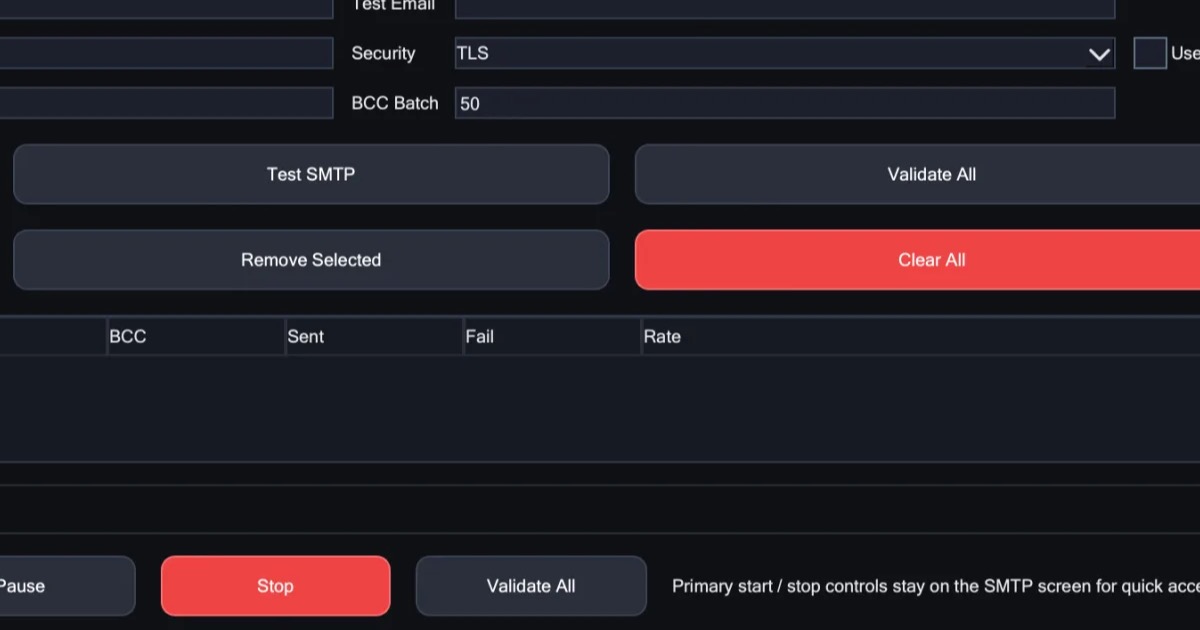
If port 587 is blocked, your mail app cannot reach your provider's mail server, so the send times out or the connection is refused. Test the port with Test-NetConnection in Windows PowerShell, and if it is blocked, try port 465, another network, or a proxy that keeps the mail ports open.
Not every failure on port 587 is a block, though. If you are still choosing a port, start with port 587 vs 465 vs 25.
What "blocked" looks like
When SMTP port 587 is not working, the mail app usually fails in one of three ways. Each one points somewhere different.
The send times out
The app waits, then gives up. Usually nothing answered at all: something between you and the server is quietly dropping the connection, such as a firewall on your computer or network, your internet provider, or a proxy. This is the classic sign of a blocked port. A timeout can also mean the app reached the server but is waiting for the wrong kind of answer, which is the encryption mix-up in fix 1 below.
The connection is refused
The app fails straight away. This time something did answer, and it said no. Either nothing is listening at that server name and port, or a firewall or proxy in the way turns the port down instead of ignoring it. Check both against your provider's settings page.
Sign-in fails
The server says your username or password was not accepted. That is good news for the port: the app reached the server and the server answered, so port 587 is open. The problem is the sign-in, not the port (fix 3 below).
How to test port 587 on Windows
Windows 10 and 11 can test a port without any extra software.
- Open PowerShell from the Start menu.
- Run
Test-NetConnection smtp.gmail.com -Port 587, with your provider's mail server in place of Gmail's. Your provider's settings page lists it. - Find the
TcpTestSucceededline.Truemeans your network lets port 587 through to that server.Falsemeans the connection did not get through. - If it says
False, run the same command with-Port 465.
When you read the result:
- Only
TcpTestSucceededmatters here. If the output also shows a ping result, ignore it. Many servers do not answer pings. - A warning about the name usually means a typo. If PowerShell says it cannot resolve the server name, check how you typed it.
- A pass means your network lets the port through. If the test passes but your app still fails, look at the app's settings instead: the server name, the encryption setting, the sign-in and any proxy.
- The test does not use your proxy. It ignores the proxy set in your mail app or in Windows, so it tests your own connection only.
Who blocks port 587
- Home internet providers (ISPs). They rarely block 587. Many block port 25, which infected computers once used to send spam directly. If you suspect your ISP is blocking port 587, test on another network first (fix 4 below).
- Workplace and school firewalls. Many organisations let only web traffic out, plus mail to their own mail server.
- Antivirus mail shields. Some antivirus programs check mail by sitting between your app and the server. They can block a mail port, or get in the way of the encryption.
- Cloud hosts. Many cloud hosts block outgoing mail ports on new servers: usually port 25, and sometimes 465 and 587 as well. Some lift the block if you ask.
- Proxy networks. Most proxy networks block ports 25, 465 and 587 to keep their shared addresses off spam blocklists. If you send through a proxy, suspect it first.
Fixes to try, in order
1. Pair the port with its encryption setting
587 goes with STARTTLS, and 465 goes with SSL/TLS. A mix-up can look just like a blocked port: the send hangs until it times out, or fails with an error about the secure connection. Check this first, because it costs nothing. In X Mailer, you pick the security mode for each connection, and port 587 gets STARTTLS automatically.
2. Try port 465
Some firewalls, antivirus mail shields and networks block 587 but let 465 through. If the test passes on 465, use it with SSL/TLS. Gmail accepts both ports, but some providers accept only one, so check your provider's settings page.
3. Use an app password
If the port is open and sign-in fails, the port is not the problem. Many providers, Gmail included, do not accept your normal password from a mail app. They need an app password, which you create in your account's security settings, usually after turning on two-step verification. If sign-in works on your own connection but fails through a proxy, look for a security alert in the account: some providers question sign-ins from an unfamiliar place.
4. Try another network
Run the test again on a different connection, such as your phone's hotspot. If it passes there, your usual network is blocking the port. If that is your home connection, your internet provider can tell you whether they block it. If the test fails on every network, check the server name and that your provider accepts that port, then look at the computer itself: its firewall, or an antivirus mail shield.
5. Use a proxy with the mail ports open
If your network blocks the port, a proxy can carry the connection out through another network. That works only if the proxy itself keeps the mail ports open, and most do not. What "all ports open" means shows how to test a proxy's ports. The X Proxy is a proxy with ports 25, 465 and 587 open on every plan, over HTTPS or SOCKS5, and it works with any tool, not just X Mailer.
A proxy changes only where the connection comes from. You still sign in to your own provider, and its sending limits still apply. A proxy also does not make unwanted mail welcome, and the X Proxy is for lawful, permission-based sending only. On a network you do not run, such as a workplace or school network, ask its IT team before you route mail around their firewall.
How to test through a proxy
Use your mail app for this. Send a test message to yourself through the proxy, then send another without it, and compare:
| Without the proxy | With the proxy | What it means |
|---|---|---|
| Works | Fails | The proxy blocks the port, or its settings are wrong. If it fails at sign-in instead, see fix 3 |
| Fails | Works | Your network blocks the port, and the proxy carries the connection past it |
| Fails | Fails | Check the server name, the port, its encryption setting and the sign-in. If all are right, both routes may be blocked |
In X Mailer, you enter the proxy's endpoint once, in the SMTP & Proxy tab, and you can send a test to yourself before any real send.
In short
- A timeout usually means a blocked port. A refused connection means a wrong server name or port, or a firewall that says no. A sign-in error means the port is open.
- Test with
Test-NetConnectionon 587, then on 465.TcpTestSucceeded : Truemeans your network lets the port through. - Fix the encryption setting first, then try 465, an app password and another network.
- If your network blocks the port, use a proxy that keeps the mail ports open, and test with it and without it.